

Members
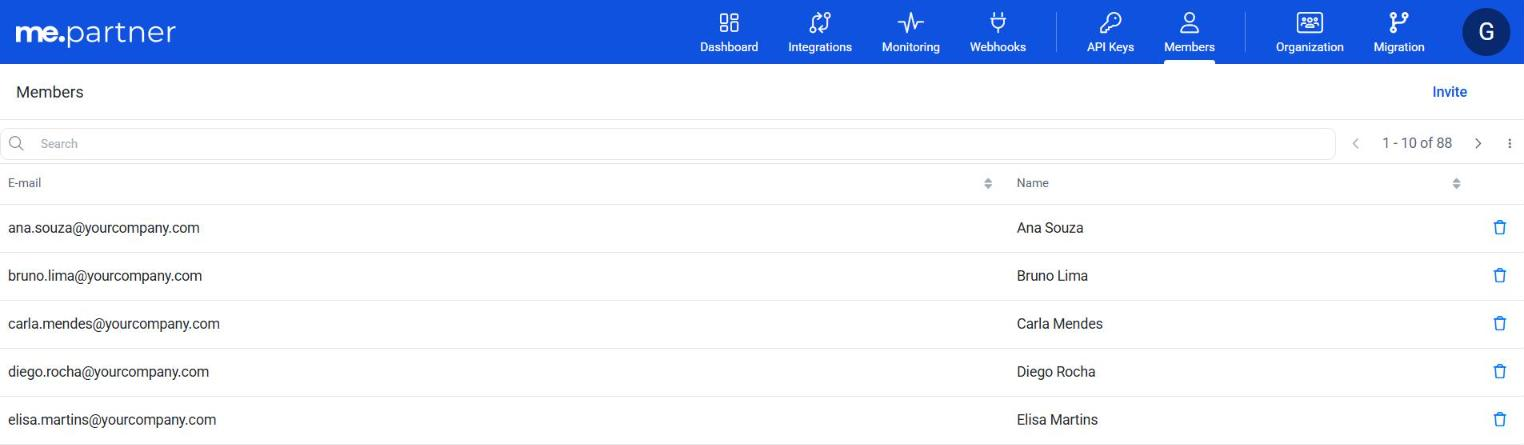
The Members screen of the Partner's portal lists your organization's developers: the people who can access the portal to manage API Keys and Webhooks.
Access to the Partner's portal is granted only to users with the developer profile (DEVELOPER); users without this profile are redirected to a page stating that they need to request this access.
The purpose of this profile is to give developers the autonomy to access the Partner's portal to manage API Keys and Webhooks. With the generated keys, developers can access our APIs, such as the ME Data Connect API.
📘 Note
The developer profile can only access the Partner's portal and APIs. This profile does not have access to any E-procurement functionalities of ME.
There are two ways to give a developer access: through the ME portal, for the organization's first access, or through the Members screen itself, by someone who already has access to the Partner's portal.
Invitation through the ME portal
The following step-by-step guide is for users to gain access to the Partner's portal.
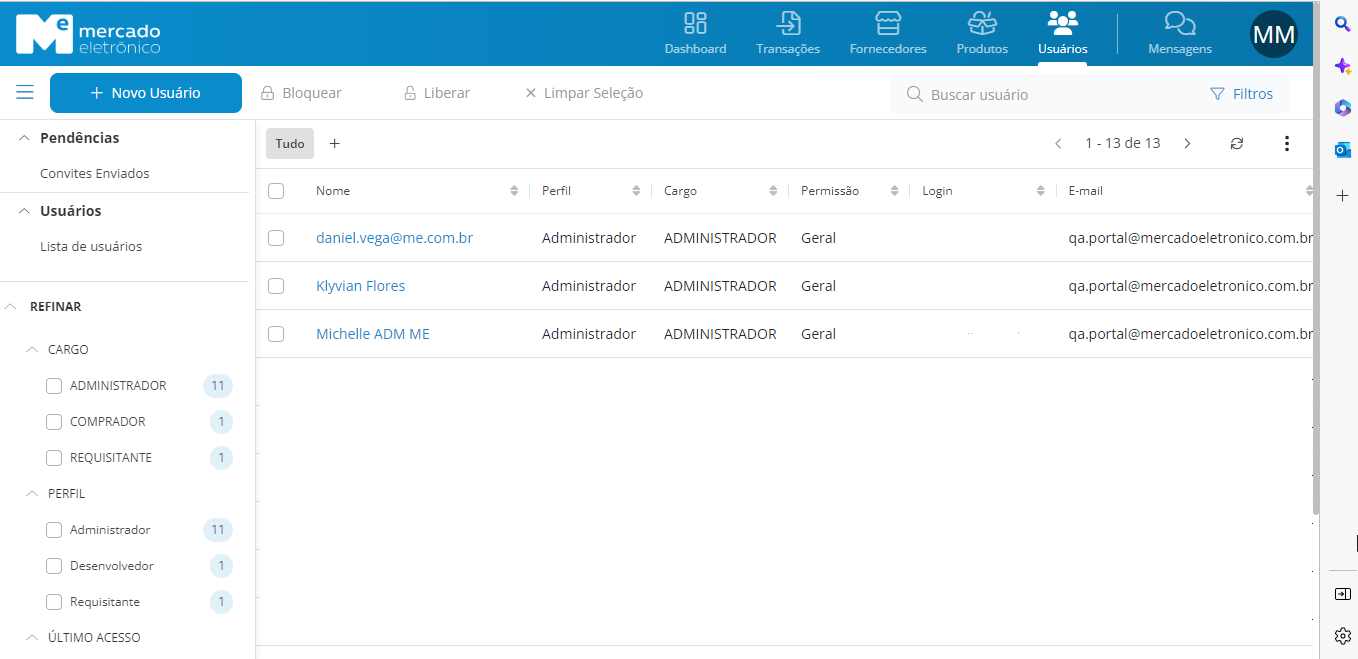
- Access your area on the ME portal, click on Users, and then click on New User:
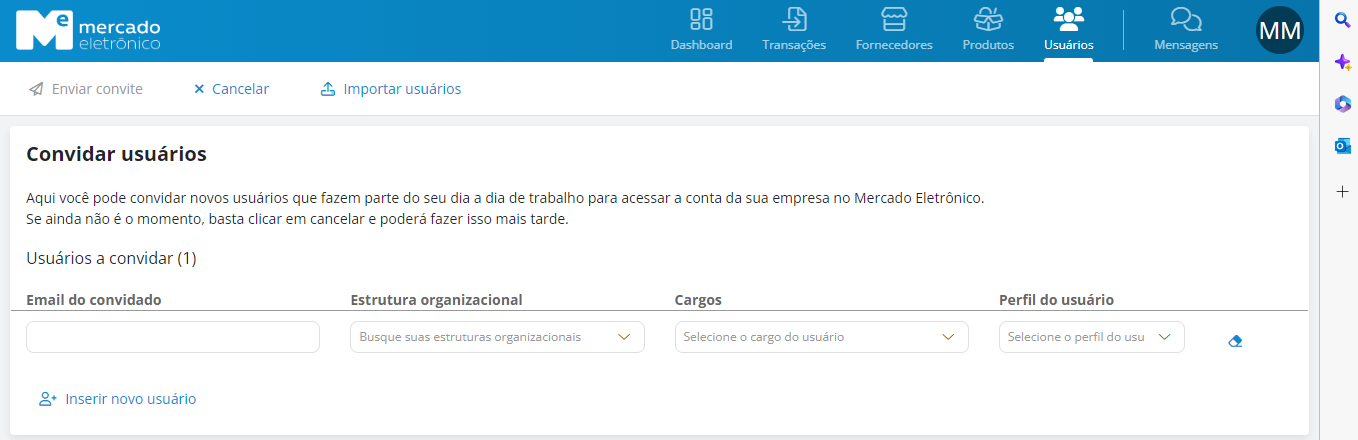
- The Invite Users screen will appear. Fill in the user information who will receive access via email to the Partner's portal:
❗️ Attention
In User Profile, select Developer (DEVELOPER). Without this profile, the invited user cannot access the Partner's portal.
- The invited user will receive a welcome email with a link to set their password. Next, they will receive another access email that will redirect them to the Partner's Portal, where they can create their API Keys.
Inviting from the Members screen
Users who already have access to the Partner's portal can also invite other developers to their organization directly from the portal:
- In the menu, click on Members and then click on Invite.
- In the Invite User window, enter the developer's Name and E-mail and click Invite.
Revoking a developer's access
The Members screen lists the organization's developers (E-mail and Name). To remove a developer's access, use the Revoke Access action (trash icon) on the corresponding row. You cannot revoke your own access.