

Connectors
What iPaaS connectors are, what they are for, and how to register them.
A connector is the registration of an external REST API that iPaaS can call on your behalf: the API address, the authentication method, and the endpoints (resources) it offers. You register the connector once and then reuse it in as many integrations as you want.
What they are for
Connectors are currently used by the Product Search template. In this template, ME calls the catalog provider (for example, a distributor or marketplace) to search for products and offers. The connector tells iPaaS where and how to make that call.
❗️ Attention
A Product Search integration cannot be tested or published without a connector. Register the connector first, or use the Create new connector shortcut in the Parameters step of the wizard.
The Document Creation (Inbound) and Document Search (Outbound) templates do not use connectors.
Registering a connector
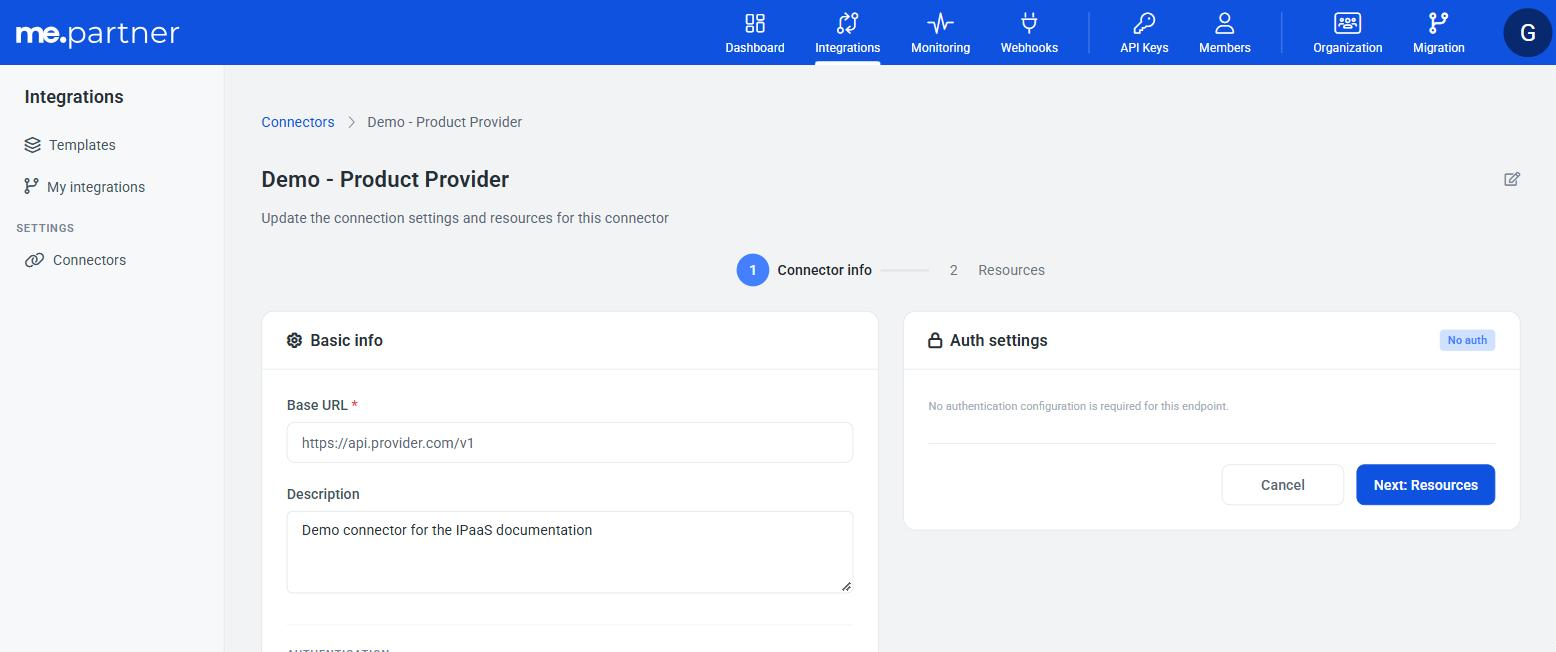
In the Partner's Portal, go to Integrations > Settings > Connectors and click New connector. Registration has two steps: Connector info and Resources.
Step 1: Connector info
| Field | Description |
|---|---|
| Connector name | Name that identifies the provider, for example "Grainger BR". Must be between 3 and 128 characters. |
| Base URL | Base address of the provider's API, for example https://api.provedor.com/v1. Resource paths are appended to it. |
| Description | Free text, optional. |
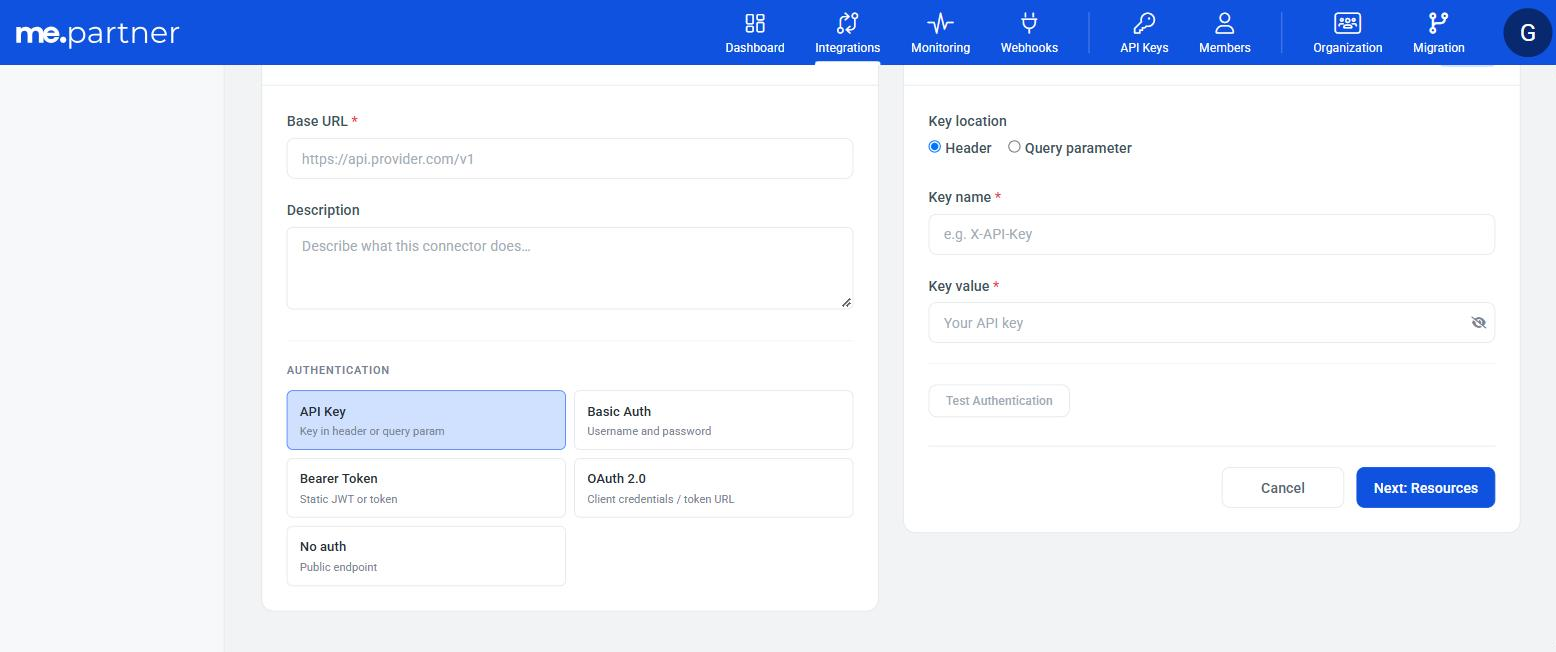
| Authentication | How iPaaS authenticates with the provider. See the table below. |
Authentication types
| Type | When to use | What to provide |
|---|---|---|
| No auth | Public endpoint. | Nothing. |
| API Key | The provider expects a fixed key. | Key location (Header or Query parameter), Key name (e.g. X-API-Key) and Key value. |
| Bearer Token | The provider accepts a fixed token (static JWT or long-lived token). | Token. iPaaS sends Authorization: Bearer {token}. |
| Basic Auth | The provider uses a username and password. | Username and Password. |
| OAuth 2.0 | The provider issues tokens through client credentials. | Token URL, Client ID, Client secret and Scope (optional). Under Advanced: Send credentials via (request body or Basic Auth header), Token refresh interval (how many seconds before expiration the token is renewed; default 60) and Additional request parameters (e.g. audience, resource). |
📘 Note
Provider credentials are stored encrypted and are never displayed again. When you edit the connector, the fields appear masked. To change a value, click Change credential.
Testing authentication
Click Test Authentication to have iPaaS make a test request with the base URL and the credentials you entered. If everything is correct, the message 200 OK — Connection successful is displayed. If not, check the URL and the credentials.
- The test can be run before saving the connector.
- When editing a connector that is already saved, the fields you do not change are tested with the saved values. If you change the host of the base URL (or of the token URL, in OAuth 2.0), you must enter all credentials again. This prevents a saved credential from being sent to another server.
Step 2: Resources
A resource is a provider endpoint that iPaaS can call. Add one resource for each endpoint your integrations will use, for example "search products" and "product detail".
| Field | Description |
|---|---|
| Resource name | E.g. "Product Search". |
| Path | Fixed path relative to the base URL. Must start with /, for example /products/search. |
| HTTP methods | GET, POST, PUT, PATCH or DELETE. Each combination of method and path is a unique resource in the connector. |
| Description | Optional. |
How iPaaS sends the search parameters to the provider:
GETandDELETEresources: the parameters go in the query string (e.g.?searchTerm={term}&pageNumber={page}&pageSize={size}).POST,PUTandPATCHresources: the parameters go in the request's JSON body.
The Path is sent exactly as registered: iPaaS does not replace variables in the path (such as /products/{id}). The search parameters always go in the query string or in the body, as described above. Register fixed paths.
Request mapping
Each Product Search operation sends a fixed set of ME parameters to the provider:
| Operation | Parameters sent by ME |
|---|---|
| List (getAll) | searchTerm (search term), pageNumber (page, starting at 1), pageSize (items per page) |
| Get by ID (getById) | productId (product code at the provider) |
| Get offers (getOffers) | productId (product code at the provider) |
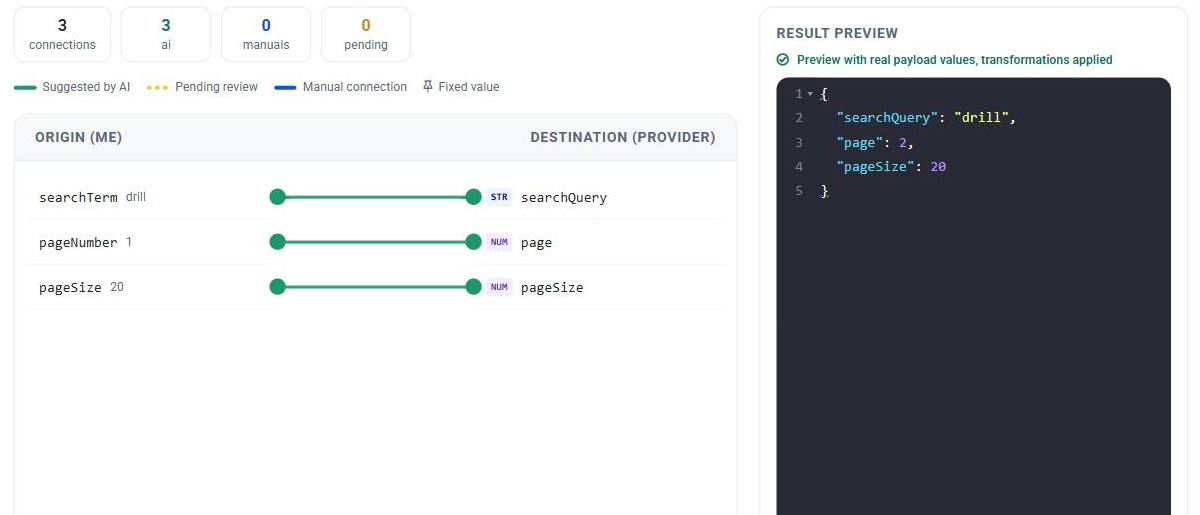
If the provider expects this data under other names or in another structure, configure the resource's Request mapping:
- In Operation, choose the operation that will use this resource.
- In Example request, paste an example of what the provider expects to receive:
- for
POST/PUT/PATCHresources, a JSON body; - for
GET/DELETEresources, a URL or query string.
- for
- Click Generate mapping. The AI links the ME parameters (Origin (ME)) to the provider fields (Destination (Provider)).
- Review the links and the preview, and save the resource.
Example: the provider expects a body with the search word in searchQuery and a fixed block identifying the customer.
{
  "clientDetails": { "clientId": "192533129MEP", "accountNumber": "800014904" },
  "searchQuery": "drill"
}
After mapping, ME sends searchTerm as searchQuery. Values that do not come from ME, such as clientDetails, can be filled in as a fixed value.
The first page is always pageNumber = 1. If the provider numbers pages from 0, use pageNumber - 1 in the request mapping. iPaaS does not enforce a maximum pageSize: it forwards the value it receives.
Query string example: for ?productRegion=US&locale=en_US&keyword=drill&pageNumber=1, keyword receives searchTerm, pageNumber receives pageNumber, and productRegion/locale remain fixed values.
If the provider requires a single code inside a list, for example "productCodes": ["3EB46"], iPaaS places the productId inside the list automatically.
📘 Note
If the provider already accepts the ME names (
searchTerm,pageNumber,pageSize,productId), you do not need to configure request mapping. The parameters are sent as they are.
Using the connector in an integration
In the Parameters step of the Product Search integration:
- Select the Connector.
- In Operations, choose which connector Resource serves each operation: Search (getAll) and Get by ID (getById) are required, and Get offers (getOffers) is optional.
See the complete step-by-step guide in Product Search.
Editing and deleting
- Edit: in Integrations > Settings > Connectors, open the connector and save the changes.
- Delete: deletion is irreversible. A connector that is in use cannot be deleted: if any integration, in any status (including draft or suspended), uses the connector, deletion is blocked and the message "This connector is used by integrations and cannot be deleted." appears. To delete it, switch those integrations to another connector or delete them first.
❗️ Attention
Changes to a connector's base URL, authentication and request mapping take effect immediately in the next executions of all integrations that use the connector, with no new test and no status change.
Changing a resource's method or path, however, does not update existing integrations: they keep calling the old path and stop using the resource's request mapping. In that case, redo the Parameters step of each integration that uses the resource.
Limitations
- Only REST APIs with JSON are supported.
- OAuth 2.0 authentication supports only the client credentials flow.
- Connectors are currently used only by the Product Search template.