

AI-assisted mapping
How iPaaS builds, with the help of AI, the conversion between your system's format and the ME format.
The mapping is the set of rules that defines, for each field of the target, where its value comes from in the source and whether it goes through any transformation. The mapping is what allows your ERP to send and receive data in its own format.
In iPaaS you do not write the mapping from scratch. The AI analyzes a real sample of the data, suggests the links between the fields, and iPaaS tests each suggestion before displaying it. You review, adjust and publish.
Source and target in each template
| Template | Source (where the data comes from) | Target (where it goes) |
|---|---|---|
| Document Creation (Inbound) | The JSON sample from your ERP, entered in Document structure | The document format of the ME public API, loaded automatically |
| Document Search (Outbound) | A real ME document, fetched by the Identifier entered in Parameters | The JSON sample your ERP expects, entered in Document structure |
| Product Search | The provider's real response for each operation | The ME catalog format |
| Connector: request mapping | The ME search parameters (searchTerm, pageNumber, pageSize, productId) | The provider's request sample |
📘 Note
The quality of the mapping depends on the sample. Use a real and complete sample: all the fields your system usually sends, with filled-in values and at least one item in each list.
How it works
- Analysis: when you open the Mapping data step, the AI analyzes the source and the target and links the fields by meaning, not only by name. For example,
C7_NUMcan be linked toclientOrderId, andC7_EMISSAOtoorderDate. - Automatic transformations: when the formats differ, the AI already suggests the required conversion, for example from text to number or from the date
20250115to2025-01-15T00:00:00Z. - Verification: iPaaS runs each suggestion against the sample and also against a version of the sample with empty fields. This way it ensures that the rule works and that it does not break when a field comes without a value. If a suggestion fails, iPaaS tries to fix it automatically.
- Result: the links appear on the mapping board with the AI's confidence percentage. The fields that could not be mapped automatically are listed for you to complete.
The AI never makes up values. If a target field has no match in the source, it is left unlinked, and you decide whether it gets a fixed value or stays empty.
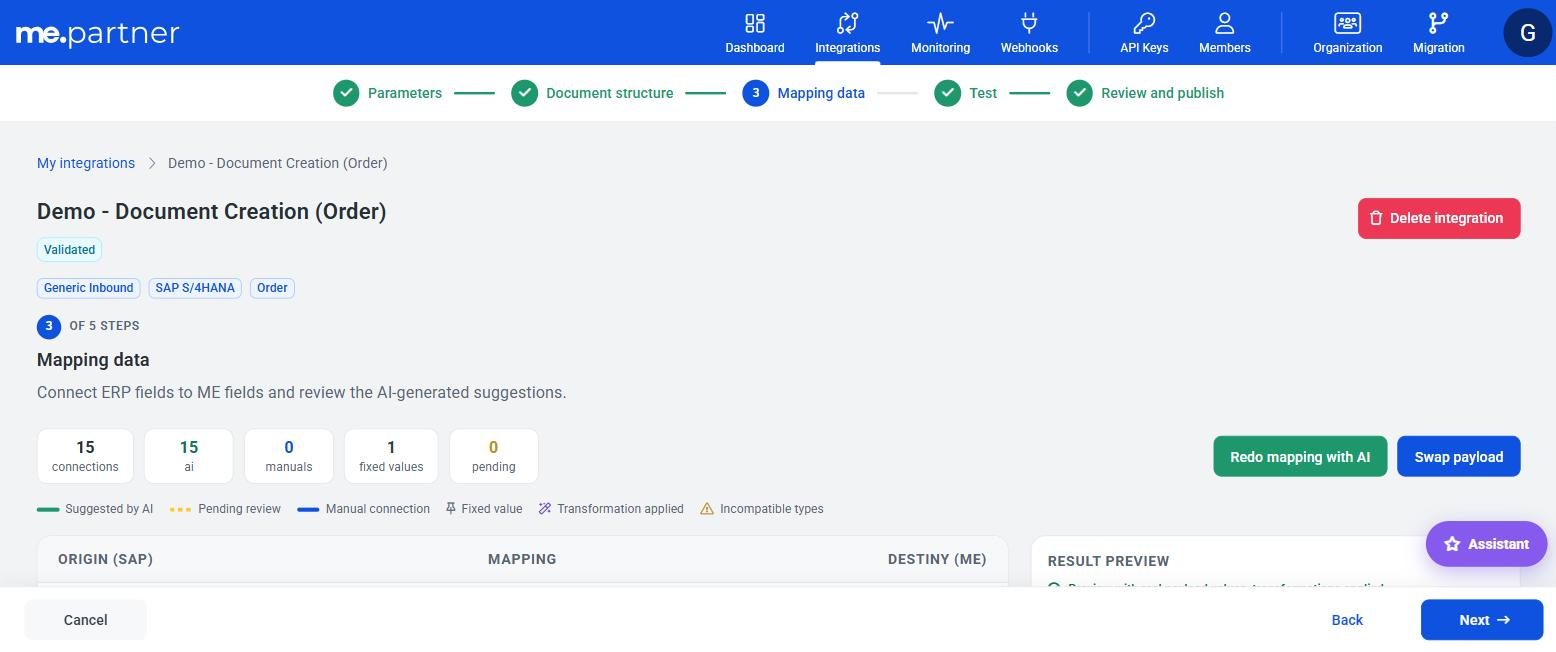
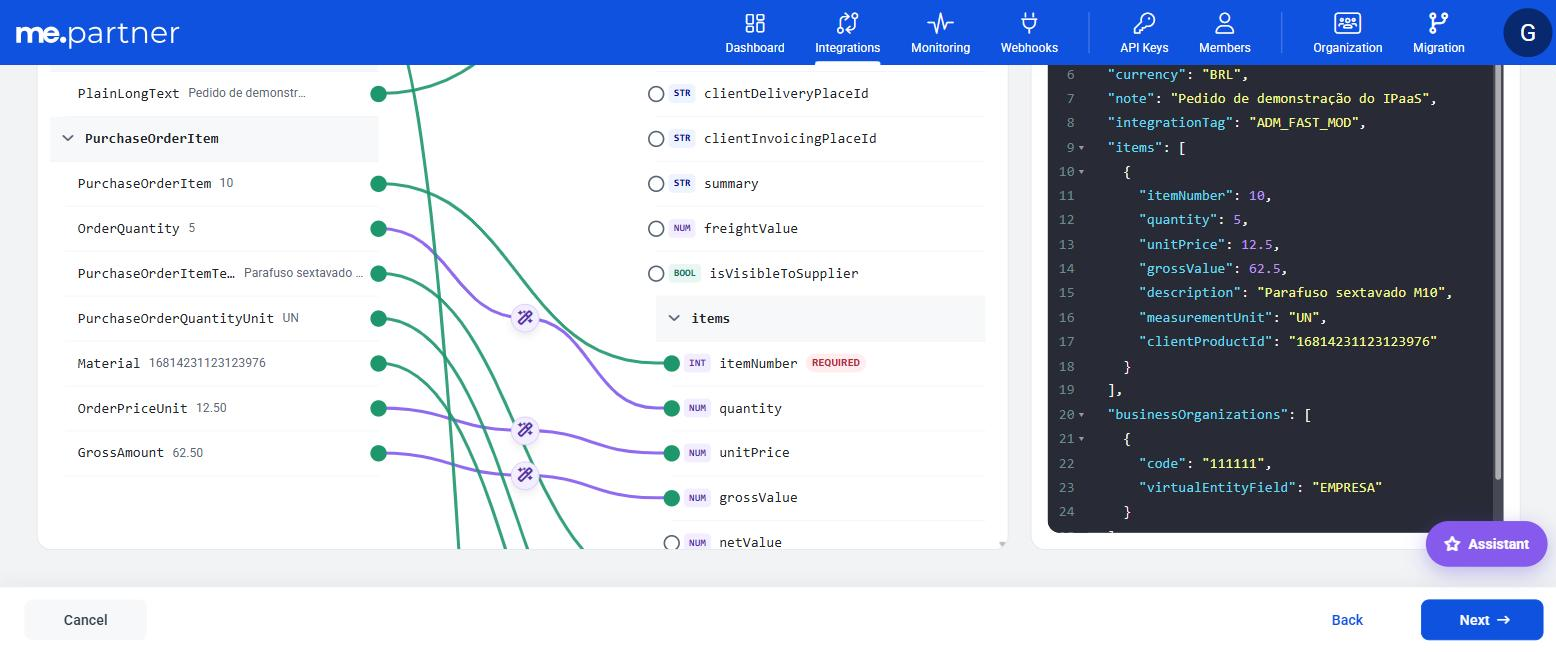
Reading the mapping board
The board has three columns: Origin (the source fields), Mapping and Destination (the target fields). Each link is marked with a type:
| Type | Meaning |
|---|---|
| Suggested by AI | Link suggested with 70% confidence or more. |
| Pending review | Link suggested with less than 70% confidence. It must be confirmed or adjusted. |
| Manual connection | Link made by you. |
| Fixed value | The field always receives the same value, entered by you. |
| Transformation applied | The value goes through a conversion rule before reaching the target. |
| Incompatible types | Source and target have different types (e.g. text → number). Click to add a conversion or remove the link. |
The top of the board shows the total number of connections, how many come from the AI, how many are manual, fixed values and pending, and how many required fields still have no connection.
To move on to the test:
- all required target fields must be linked;
- all pending links must be confirmed (use Confirm pending to confirm all of them at once);
- no link can point to a field that does not exist in the sample (warning Source not found in the sample payload);
- list to single field links must have the item chosen. See Choosing one item from a list.
Adjusting the mapping
Manual link
Click the connector of a source field and then the connector of the target field. To cancel, press Esc. If the target already has a link, you choose between Replace existing connection and Match with a transformer. The second option combines the two values, for example by concatenating them.
Fixed value
In the target field, enter a fixed value. Use it for constants, such as a default organization code or the document type. iPaaS warns you if the value is not compatible with the field type, for example a text in a numeric field.
Transformation
On the link, click Transform (or Edit, if there is already a transformation) and describe in your own words what needs to be done:
"concatenate the two fields with a hyphen and make everything uppercase"
Click Generate transformation. The generated rule appears in Expression (editable), with the Input and Output preview using the real values from the sample. You can accept it, try another description or edit the expression directly. See the Expressions guide to understand the rules that can be created.
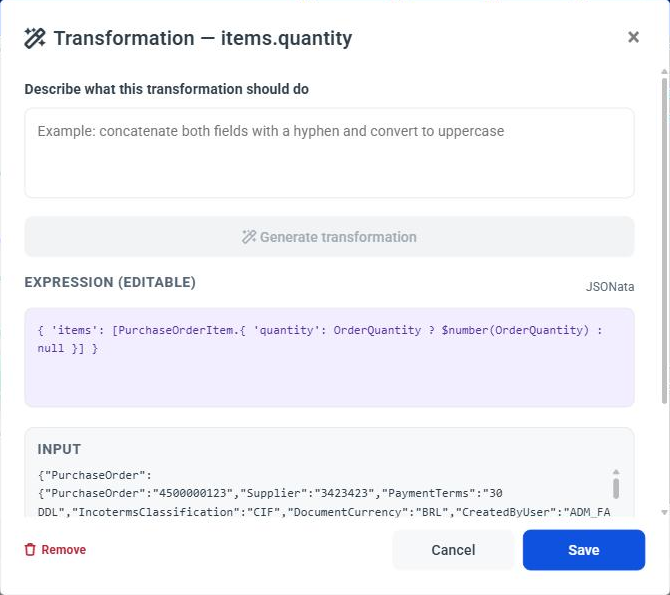
In the example in the figure, the expression converts OrderQuantity into a number and protects the field against an empty value (OrderQuantity ? $number(OrderQuantity) : null), iterating over the PurchaseOrderItem list.
Mapping assistant
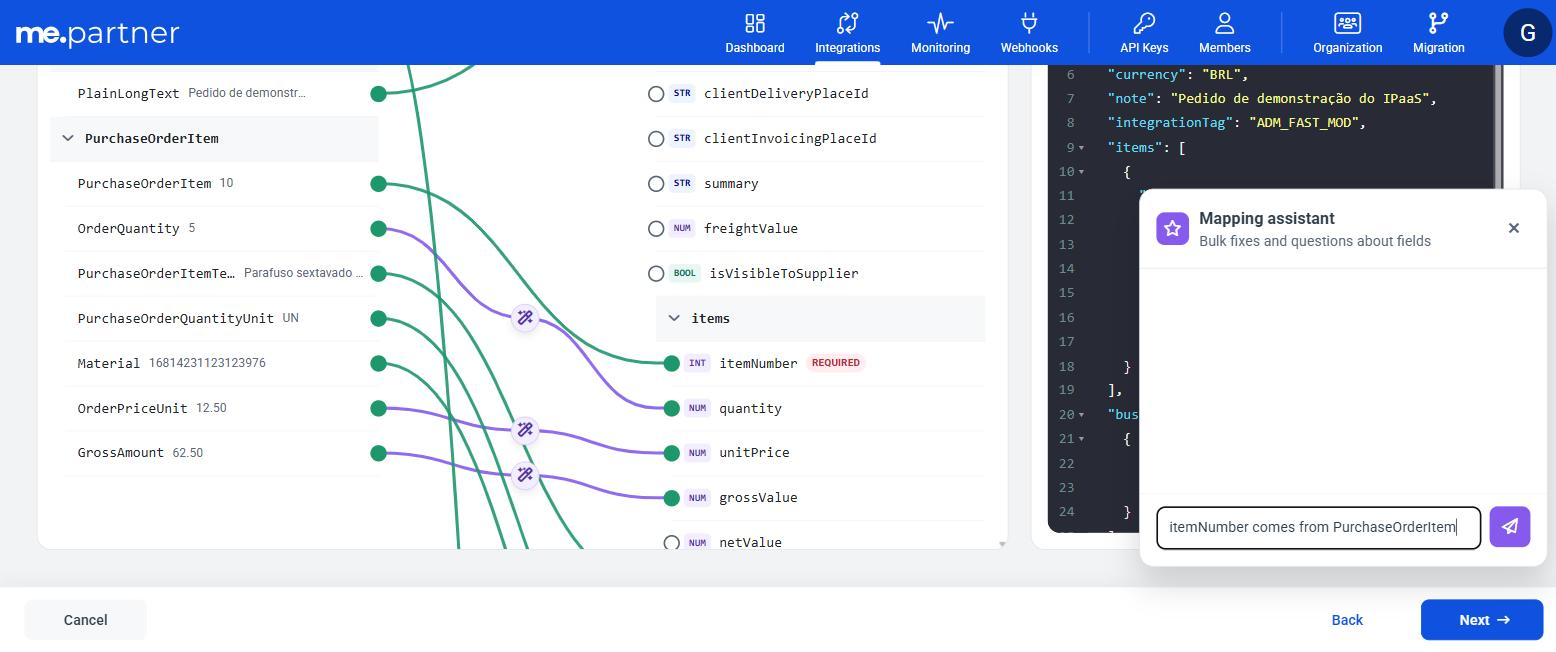
The Assistant button opens a conversation with the AI for bulk fixes and questions:
- Request changes: direct requests, such as "delivery date is C7_DATPRF", changing the source of a field, removing a link, adding a field or turning a field into a list. The assistant changes only what was requested and keeps the rest.
- Ask questions: questions such as "why X?", "what does Y do?" or "is this right?". The assistant answers without changing the mapping.
If the request is ambiguous or mentions a field that does not exist in the sample, the assistant explains why instead of making the change.
Redoing the mapping or swapping the sample
- Redo mapping with AI: discards the current suggestions and requests a new analysis.
- Swap payload: replaces the source sample, for example with a more complete one.
Result preview
The Result preview shows the target document built with the real values from the sample and with all transformations applied. Use the preview to check the final result before testing.
If any field has a conflict during assembly (for example, two links writing to the same field), iPaaS resolves it automatically and tells you which fields were adjusted.
Best practices
- Start with a good sample. Most bad suggestions come from incomplete samples.
- In Outbound, comment the ERP sample.
//comments at the end of each line ("vendor SAP code", "date in YYYYMMDD format") help the AI understand the field. - Review pending links and required fields first. They are the most likely to be wrong.
- Check the preview and test. The test is the final validation: only the test confirms that the document is accepted by the target.
- Has your system's format changed? Update the mapping. The mapping follows the structure of the sample.