

Document Search (Outbound)
Fetch a Mercado Eletrônico document by its identifier and get it already in your ERP format.
The Document Search (Outbound) template is a query: instead of sending data to ME, your system fetches a document that already exists in ME by providing its identifier. iPaaS fetches that document, with all related information (items, organizations, attributes, attachments, etc.), converts it to the format your ERP expects using the configured mapping and returns the result in the response to the call. iPaaS does not send the document to your system: the caller receives the result and decides what to do with it.
📘 Note
iPaaS does not send the document to your ERP. It returns the converted document to the caller, and your system uses it as needed (saving it in the ERP, forwarding it to another system, etc.).
When to use
- Your system is notified that a document was created or changed in ME (for example, by a webhook) and needs to fetch that document in the ERP format.
- You want to avoid building queries to the ME APIs and the conversion of fields to the ERP format.
Supported document types
| Document type | Code |
|---|---|
| Order (purchase order) | order |
| Pre-order | pre-order |
| Request | request |
| Quotation | quotation |
| Contract | contract |
| Invoice | invoice |
| Product | product |
| Supplier | supplier |
| Service sheet | service-sheet |
| Service sheet document | service-sheet-document |
| User | user |
| Organization | business-organization |
Configuring
Create the integration in Integrations > Templates > Generic Outbound > Use template and follow the wizard steps:
- Parameters: select the ERP and the Document type, and provide an Identifier, which is the ID of a document of that type that already exists in ME. iPaaS uses this real document as the sample for the mapping and for the test.
- Document structure: paste a sample of the JSON your ERP expects to receive. You can add
//comments at the end of lines to explain what the fields mean. The AI uses these comments to map better. - Mapping data: the AI connects the ME fields (Origin) to your ERP fields (Destination). Review, confirm the pending ones and adjust what is needed. See AI mapping.
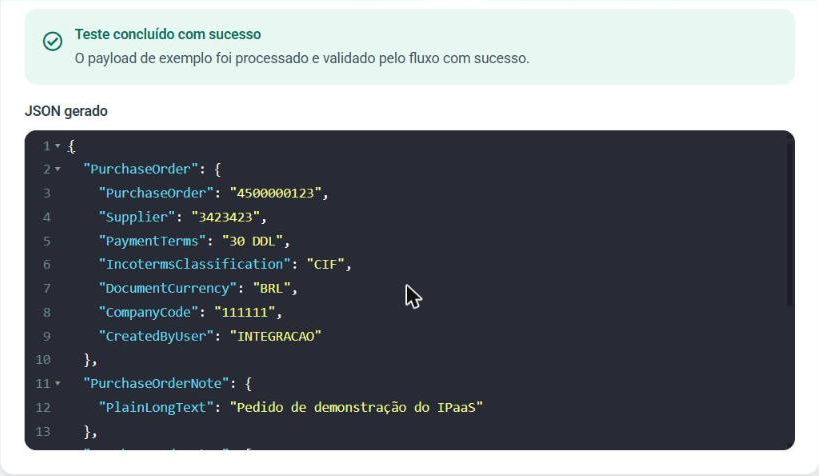
- Test: provide an identifier and run. The portal shows the Generated JSON, exactly what your call will receive.
- Review and publish: check and click Publish. Copy the Key and the Secret shown.

❗️ Attention
If ME does not have any document of the chosen type in your organization yet, the sample cannot be built. Create at least one document of that type in ME before configuring the integration.
Running
Send the document identifier in the id field of the body, not in the URL. The id must be a string (in quotes):
POST https://api.mercadoe.com/integration-hub-api/v1/flows/{flowId}/execute
Authorization: Bearer {accessToken}
Content-Type: application/json
x-me-correlation-id: {your tracking identifier}{
"id": "{document identifier in ME}"
}Response
The response is synchronous: the converted document comes in the payload field, in the structure of the ERP sample provided in Document structure.
200 OKFor example, an order integration whose ERP sample follows the SAP format returns:
{
  "correlationId": "{value sent in x-me-correlation-id}",
  "payload": {
    "PurchaseOrder": {
      "Supplier": "{order.clientSupplierId}",
      "PaymentTerms": "{order.clientPaymentConditionId}",
      "DocumentCurrency": "{order.currency}",
      "CompanyCode": "{code of the organization chosen in order.businessOrganizations}"
    },
    "PurchaseOrderNote": { "PlainLongText": "{order.note}" },
    "PurchaseOrderItem": [
      { "PurchaseOrderItem": "{...}", "OrderQuantity": "{...}", "Material": "{...}" }
    ]
  }
}
The values in braces indicate which field of the ME document each value came from, according to the published mapping.
| Field | Description |
|---|---|
correlationId | The value sent in x-me-correlation-id, or a value generated by the platform. |
payload | The ME document converted to your ERP format. |
The execution is also recorded in Monitoring > Executions.
Common errors
| Status | Step | When it happens |
|---|---|---|
422 Unprocessable Entity | INGESTION | The body is not a JSON object, or does not have the id field as a non-empty string. Message: The 'id' field is required. |
404 Not Found | DATA_RETRIEVAL | There is no document with that identifier in ME for your organization. Message: No 'order' record was found for id '{id}'. (with the entity name of the document type). |
422 Unprocessable Entity | TRANSFORMATION | The conversion failed with this document's data. |
422 Unprocessable Entity | — | The integration is not in a status that allows execution. |
403 Forbidden | — | The token does not belong to this integration's credential. |
Example response for a body without id:
{
  "type": "https://datatracker.ietf.org/doc/html/rfc4918#section-11.2",
  "title": "The request was well-formed but could not be processed.",
  "status": 422,
  "detail": "The 'id' field is required.",
  "failedAtStep": "INGESTION",
  "correlationId": "{correlationId}",
  "errors": [ { "field": "$.id", "messages": ["The 'id' field is required."] } ],
  "errorCode": "SCHEMA_VALIDATION_FAILED"
}
See the full error format in Executions.
Limitations
- Does not deliver to the ERP. The converted document is returned in the response. Saving it in the ERP is the responsibility of the calling system.
- One document per call, fetched by its identifier (
id). There is no search by filters, period or document lists. - Read-only. The integration does not change anything in ME.
- One document type per integration.
- The mapping starts from a sample document. Fields that were empty or missing in that sample may not have been mapped. If your documents vary a lot, review the mapping with a more complete sample.
- ME lists have no guaranteed order. To take a value from a list (for example, the code of the "EMPRESA" organization) into a single ERP field, choose the item by a field that identifies it, not by its position. See Choosing one item from a list.