

Document Creation (Inbound)
Send documents from your ERP in its own format and let iPaaS create them in Mercado Eletrônico.
The Document Creation (Inbound) template receives a document sent by your system (ERP, middleware or any application), converts it to the format of the ME public API using the configured mapping and creates the document in ME.
Your system keeps sending the JSON in the format it already produces. There is no need to adapt it to the ME API contract.
When to use
- Your ERP needs to create orders, invoices, contracts, suppliers, products and other documents in ME.
- You want to avoid building and maintaining the field conversion to the ME format.
Supported document types
The target format of each document type is the one of the ME public API listed below. In the mapping step, this format is loaded automatically.
| Document type | Operation performed in ME |
|---|---|
| Product | POST Create a product |
| Request | POST Create a request |
| Quotation | POST Create a quotation |
| Contract | POST Create a contract |
| Invoice | POST Create an invoice |
| Order (purchase order) | POST Create an order |
| Order delivery | POST Create an order delivery (requires the orderId parameter, see below) |
| Accounts payable | POST Create accounts payable |
| Accounts receivable | POST Create accounts receivable |
| Supplier | POST Create a supplier |
| Cost center | POST Create a cost center |
| Service sheet | POST /v1/service-sheets (ME service sheets API) |
Configuring
Create the integration in Integrations > Templates > Generic Inbound > Use template and follow the wizard steps:
- Parameters: select the ERP, or register a new one, and the Document type. The integration's Endpoint URL is shown in this step.
- Document structure: paste a real sample of the JSON your ERP will send. The more complete the sample (all fields and at least one item in each list), the better the mapping.
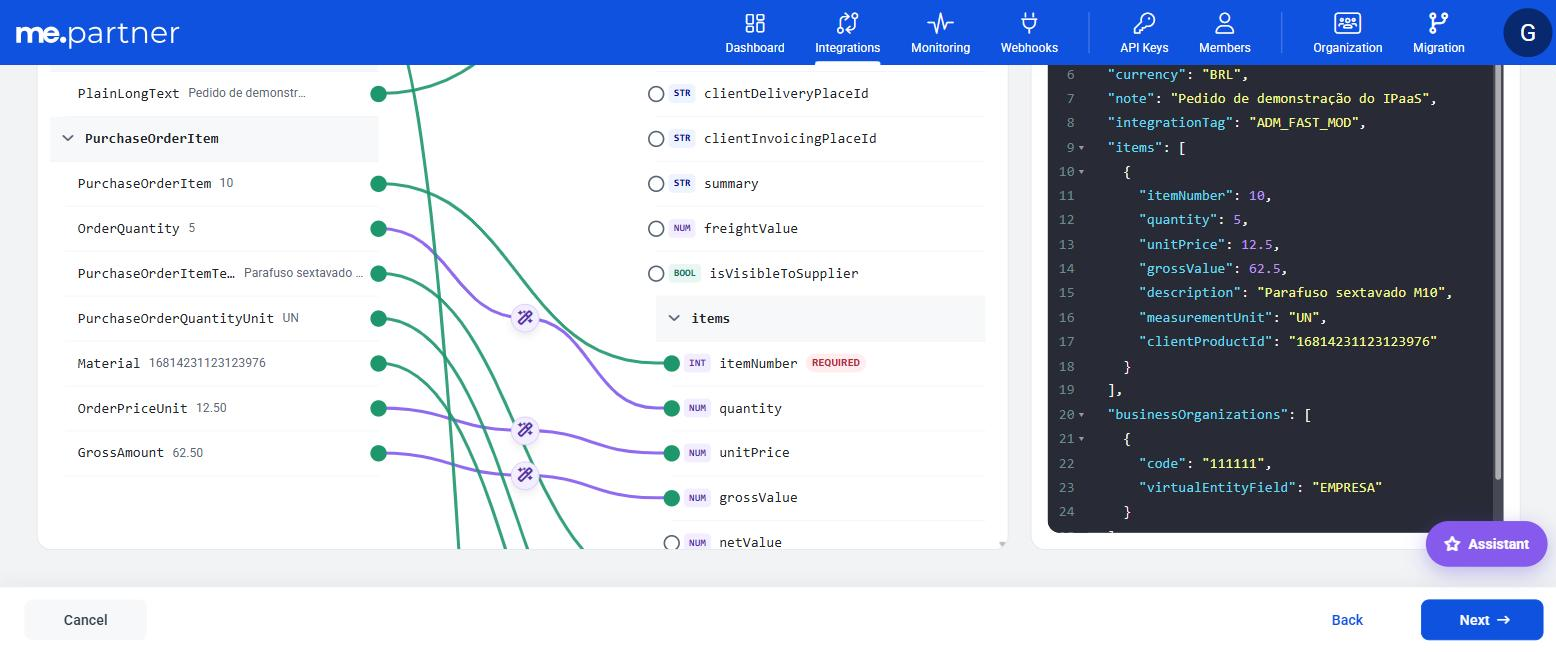
- Mapping data: the AI connects your ERP fields (Origin) to the ME fields (Destination). Review the suggestions, confirm the pending ones and make sure all required ME fields are connected. See AI mapping.
- Test: iPaaS runs the integration with the sample payload and waits for ME to process the document.
- Review and publish: check the summary and click Publish. Copy the Key and the Secret shown.
❗️ Attention
The test is a real execution: the sample document is created in ME. Use test data or a staging environment. If you prefer, use Skip test, which validates the integration without running the test.
Running
Send your ERP document, in the same structure as the sample used for the mapping, to the integration's Endpoint URL:
POST https://api.mercadoe.com/integration-hub-api/v1/flows/{flowId}/execute
Authorization: Bearer {accessToken}
Content-Type: application/json
x-me-correlation-id: {your tracking identifier}
The body is your ERP's JSON. For example, an order integration mapped from an SAP sample receives a body with this structure:
{
  "PurchaseOrder": {
    "PurchaseOrder": "{order number in the ERP}",
    "Supplier": "{supplier code}",
    "PaymentTerms": "{payment terms}",
    "IncotermsClassification": "{incoterm}",
    "DocumentCurrency": "{currency}",
    "CreatedByUser": "{user}",
    "CompanyCode": "{company code}"
  },
  "PurchaseOrderNote": { "PlainLongText": "{note}" },
  "PurchaseOrderItem": [
    {
      "PurchaseOrderItem": "{item number}",
      "OrderQuantity": "{quantity}",
      "PurchaseOrderItemText": "{item description}",
      "PurchaseOrderQuantityUnit": "{unit}",
      "Material": "{material code}"
    }
  ]
}
iPaaS converts this body to the Create an order format, for example PurchaseOrder.PurchaseOrder → clientOrderId, PurchaseOrder.Supplier → clientSupplierId, PurchaseOrder.PaymentTerms → clientPaymentConditionId, PurchaseOrder.IncotermsClassification → incoTerms, PurchaseOrder.DocumentCurrency → currency, PurchaseOrderNote.PlainLongText → note and the PurchaseOrderItem items → items (quantity, description, measurementUnit, clientProductId...), according to the published mapping.
- The body is a single document: a JSON object of up to 5 MB with no repeated keys.
- The
x-me-correlation-idheader is optional, but recommended. See Correlation ID.
Order delivery: orderId parameter
In the Order delivery type, the delivery is recorded on an existing order. Provide that order's identifier in the query string:
POST https://api.mercadoe.com/integration-hub-api/v1/flows/{flowId}/execute?orderId={order id in ME}Without the orderId, the execution is rejected with 400 Bad Request at the DELIVERY step:
{
  "type": "https://datatracker.ietf.org/doc/html/rfc9110#section-15.5.1",
  "title": "Bad Request",
  "status": 400,
  "detail": "The downstream service returned an unexpected response.",
  "failedAtStep": "DELIVERY",
  "correlationId": "{correlationId}"
}
Response
Processing in ME is asynchronous. The immediate response only confirms that iPaaS received, converted and delivered the document to ME:
202 Accepted{
"correlationId": "{value sent in x-me-correlation-id}"
}The correlationId is the value sent in x-me-correlation-id. If the header is not sent, the platform generates a value and returns it here. Keep this value to find the execution later.
📘 Note
The
202 Accepteddoes not mean the document has already been created in ME. The final result arrives later, when ME finishes processing the document.
How to confirm the document was created
- Go to Monitoring > Executions in the Partner's Portal.
- In Filters, filter by Correlation ID using the value returned in
correlationId. - Check the execution Status:
| Execution status | Meaning |
|---|---|
| In progress | The document was delivered to ME and is being processed. |
| Success | ME created the document. |
| Error | The conversion failed, ME rejected the document or processing ended with an error. |
| Timed out | A step exceeded the time limit. |
- Click View timeline to see the steps. When ME finishes processing, the
DOCUMENT_PROCESSINGstep shows the result, and the Entity ID contains the identifier of the document created in ME. In case of error, the step shows the message returned by ME.
See the full walkthrough in Tracking executions.
Errors in the immediate response
If the problem is detected before or during delivery (invalid payload, conversion failure, document rejected by the ME API, integration not executable, etc.), the response already contains the error in Problem Details format (application/problem+json), with the step at which the execution failed (failedAtStep). When the error comes from the ME API, the API status and error messages are passed through in errors. See the format and all codes in Executions.
Limitations
- Creation only. The template only creates documents (
POST). Updating (PUT/PATCH), cancelling and deleting documents are not available yet. Sending an already integrated document again tries to create it once more. - One document per call. You cannot send a list of documents in a single execution.
- Asynchronous result. Confirmation that the document was created does not come in the call's response. Check monitoring.
- No deduplication. iPaaS does not detect repeated documents. The
x-me-correlation-idis for traceability only and does not prevent duplicate submissions. - One document type per integration. To integrate orders and invoices, for example, create one integration for each.
- Fixed input format. The mapping is built on the structure of the sample provided. If your ERP changes the JSON format (new, renamed or restructured fields), update the mapping.
- Order delivery requires the
orderIdin the query string. - The request body is limited to 5 MB and cannot contain duplicate JSON keys.