

End-to-end examples
A complete example for each template: from creating the integration to confirming the result.
The following examples show the full path of an integration: configure, map, test, publish, execute and check the result. The field names are those of real integrations configured in the Partner's Portal and of ME's public APIs. The values of each document appear as {...}, because they depend on your data.
Document Creation (Inbound): purchase order coming from SAP
Scenario: SAP S/4HANA needs to create purchase orders in ME.
1. Create and configure
- Integrations > Templates > Generic Inbound > Use template.
- Parameters: ERP = SAP S/4HANA, Document type = Order.
- Document structure: paste a real order exported by SAP, with this structure:
{
  "PurchaseOrder": {
    "PurchaseOrder": "{order number}",
    "Supplier": "{supplier code}",
    "PaymentTerms": "{payment terms}",
    "IncotermsClassification": "{incoterm}",
    "DocumentCurrency": "{currency}",
    "CreatedByUser": "{user}",
    "CompanyCode": "{company code}"
  },
  "PurchaseOrderNote": { "PlainLongText": "{note}" },
  "PurchaseOrderItem": [
    {
      "PurchaseOrderItem": "{item number}",
      "OrderQuantity": "{quantity}",
      "PurchaseOrderItemText": "{item description}",
      "PurchaseOrderQuantityUnit": "{unit}",
      "Material": "{material code}"
    }
  ]
}
2. Review the mapping
The target is the Create an order format. Links suggested by the AI for this example:
| Target (ME) | Source (SAP) |
|---|---|
clientOrderId | PurchaseOrder.PurchaseOrder |
clientSupplierId (required) | PurchaseOrder.Supplier |
clientPaymentConditionId | PurchaseOrder.PaymentTerms |
incoTerms | PurchaseOrder.IncotermsClassification |
currency | PurchaseOrder.DocumentCurrency |
integrationTag (required) | PurchaseOrder.CreatedByUser |
note | PurchaseOrderNote.PlainLongText |
items.quantity | OrderQuantity, converted to a number (iterating over PurchaseOrderItem) |
items.description | PurchaseOrderItemText |
items.measurementUnit | PurchaseOrderQuantityUnit |
items.clientProductId | Material |
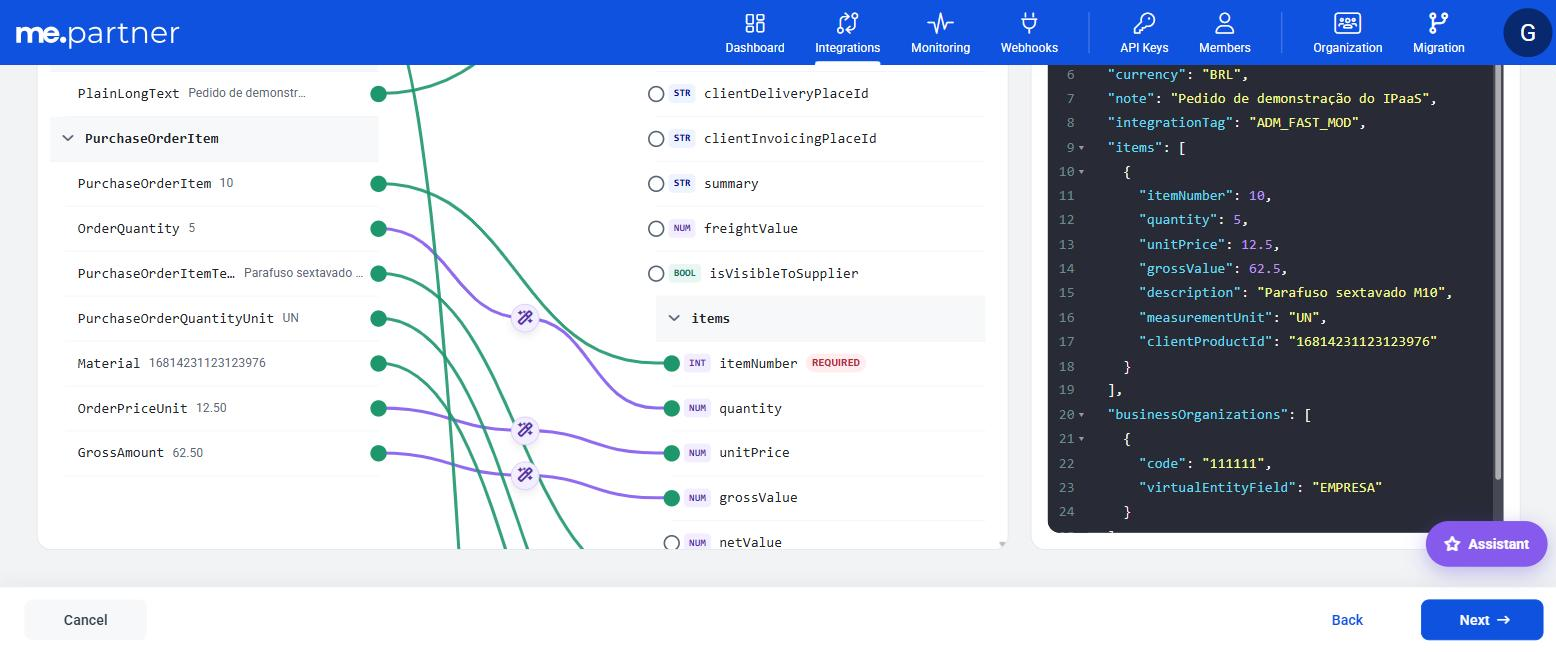
Complete the required fields that were left unlinked. In this example, the canvas showed 1 obligatory no connection. In items, the only required field of the API is items.itemNumber, an integer: link it to PurchaseOrderItem.PurchaseOrderItem, converted to a number. If you are going to send businessOrganizations, remember that the API requires code and virtualEntityField in each organization.
3. Test and publish
In the Test step, run the test and wait for Test completed successfully. Remember: the test order is actually created in ME. Then go to Review and publish > Publish, and copy the Key and the Secret.
4. Execute from the ERP
Generate the token with the Key and the Secret in POST Generate Token:
{ "clientId": "integrationhub-{flowId}", "clientSecret": "{secret}" }Send the order, with the same structure as the example:
POST https://api.mercadoe.com/integration-hub-api/v1/flows/{flowId}/execute
Authorization: Bearer {accessToken}
Content-Type: application/json
x-me-correlation-id: {your tracking identifier}
Response:
{ "correlationId": "{value sent in x-me-correlation-id}" }5. Confirm the result
In Monitoring > Executions, open Filters and enter the value in Correlation ID. When the status changes from In progress to Success, open the timeline: the Document Processing step shows the Entity ID, which is the identifier of the order created in ME. If the status is Error, the timeline shows the step that failed and the ME API message.
Document Search (Outbound): ME order in SAP format
Scenario: when an order is approved in ME, the customer's middleware receives a webhook and needs to write the order to SAP S/4HANA.
1. Create and configure
- Integrations > Templates > Generic Outbound > Use template.
- Parameters: ERP = SAP S/4HANA, Document type = Order, Identifier = the ID of an order that already exists in ME.
- Document structure: paste the JSON that SAP expects to receive. In this example, the same SAP order structure as in the previous example (
PurchaseOrder,PurchaseOrderNoteandPurchaseOrderItem).
2. Review the mapping
The source is the ME order, inside order. Links suggested by the AI for this example:
| Target (SAP) | Source (ME) |
|---|---|
PurchaseOrder.Supplier | order.clientSupplierId |
PurchaseOrder.PaymentTerms | order.clientPaymentConditionId |
PurchaseOrder.DocumentCurrency | order.currency |
PurchaseOrderNote.PlainLongText | order.note |
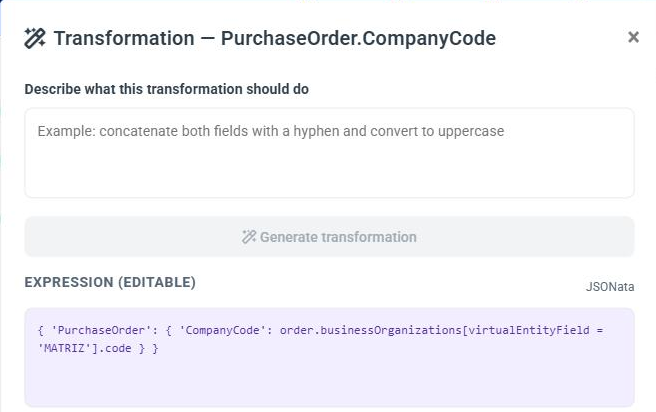
PurchaseOrder.CompanyCode | an item of the order.businessOrganizations list (see below) |
CompanyCode is a single field in SAP, but it comes from a list in ME. In these cases the canvas asks you to choose the item (Choose item warning), or already shows the choice made by the AI. In the demo flow, the order's organization has virtualEntityField = MATRIZ, and the AI generated order.businessOrganizations[virtualEntityField = 'MATRIZ'].code. Always check that the chosen value is the one that identifies the right organization in your ME configuration. See Choosing one item from a list.

3. Test and publish
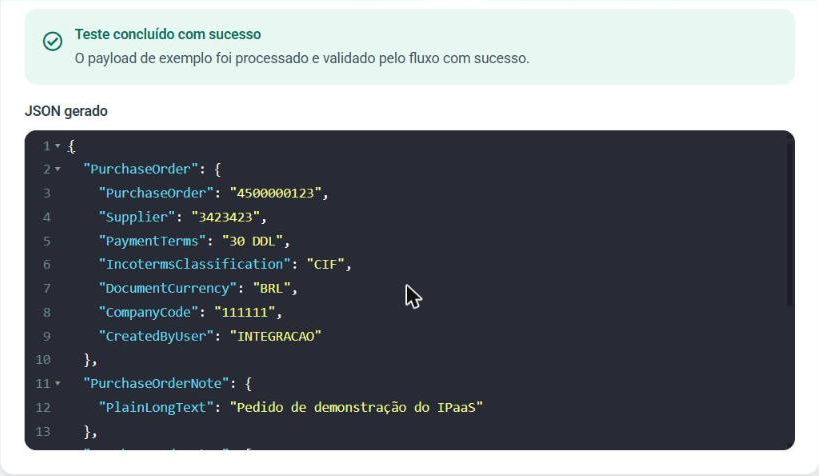
In the Test step, enter the identifier and check the Generated JSON. Publish and copy the Key and the Secret.
4. Execute from the middleware
POST https://api.mercadoe.com/integration-hub-api/v1/flows/{flowId}/execute
Authorization: Bearer {accessToken}
Content-Type: application/json
x-me-correlation-id: {your tracking identifier}{ "id": "{order identifier in ME}" }Response, with the actual JSON generated by the demo flow from the order created in the previous example:
{
  "correlationId": "{value sent in x-me-correlation-id}",
  "payload": {
    "PurchaseOrder": {
      "PurchaseOrder": "4500000123",
      "Supplier": "3423423",
      "PaymentTerms": "30 DDL",
      "IncotermsClassification": "CIF",
      "DocumentCurrency": "BRL",
      "CompanyCode": "111111",
      "CreatedByUser": "INTEGRACAO"
    },
    "PurchaseOrderNote": { "PlainLongText": "Pedido de demonstração do iPaaS" },
    "PurchaseOrderItem": [
      {
        "PurchaseOrderItem": "10",
        "OrderQuantity": "5",
        "PurchaseOrderItemText": "Parafuso sextavado M10",
        "PurchaseOrderQuantityUnit": "UN",
        "Material": "16814231123123976",
        "NetPriceAmount": "12.5"
      }
    ]
  }
}
The middleware writes the content of payload to SAP.
Product Search: catalog from a REST provider
Scenario: display in ME the products of a provider whose search API receives its own JSON body.
1. Register the connector
In Integrations > Settings > Connectors > New connector:
- Connector info: the provider's name, Base URL and Authentication. Click Test Authentication.
- Resources: add a resource for each provider endpoint and configure the Request mapping of each one. For example, for a
POSTsearch resource, operation List (getAll), whose provider expects:
{ "clientDetails": { "clientId": "192533129MEP", "accountNumber": "800014904" }, "searchQuery": "drill" }Click Generate mapping: ME's searchTerm is linked to searchQuery, and clientDetails remains a fixed value. For the detail resource, operation Get by ID (getById), whose provider expects { "productCodes": ["3EB46"], "clientDetails": { ... } }, ME's productId is linked to productCodes, and iPaaS builds the list automatically.
2. Create the integration
- Integrations > Templates > Product Search > Use template.
- Parameters: select the Connector, enter the supplier's ME Supplier ID in ME, and choose the Resource for each operation.
- Document structure: load the provider's real response for each operation.
- Mapping data: link the fields of the provider's response to the ME catalog format. The provider's product list goes to
items, which is a list-to-list link, and the total number of results goes tototalItems. - Test: run each required operation, entering a Search term (getAll) and a Product ID (getById). Publish.
3. Result
From publication onward, searches made by ME query the provider in real time. To check the result, use the wizard's Test step and follow the searches in Monitoring > Executions.