

My Integrations
The integrations your organization created from the Templates: what they are, how to create, test, publish, edit, suspend and delete them, and what each status allows.
In the Partner's Portal, go to Integrations > My integrations to see all of the organization's integrations and open one of them to edit, test, publish, suspend or delete it. Each integration is a configuration of its own: it has its template, its mapping, its Endpoint URL and its credential (see Authentication). Once published, the calls made to it are recorded in Executions.
Integration lifecycle
Every iPaaS integration follows the same path, whatever the template: it is created, configured, tested and only then published. This flow ensures that no integration starts receiving real calls without having worked at least once.
Integration statuses
| Status | What it means |
|---|---|
| Draft | The integration has just been created and has not been configured yet. |
| Needs review | The configuration was changed and needs to be tested. This is the status in which you run the test. |
| Validated | The test completed successfully. The integration is ready to be published. |
| Active | The integration is published and receiving calls. |
| Suspended | The integration was paused and does not accept executions. To use it again, edit it and publish it again. |
What is allowed in each status
| Action | Draft | Needs review | Validated | Active | Suspended |
|---|---|---|---|---|---|
| Edit the configuration | ✅ | ✅ | ✅ | ❌ | ✅ |
| Run (test or real call) | ❌ | ✅ | ❌ ¹ | ✅ | ❌ |
| Publish (activate) | ❌ | ❌ | ✅ | — | ❌ |
| Suspend | ❌ | ❌ | ❌ | ✅ | — |
| Delete | ✅ | ✅ | ✅ | ❌ | ✅ |
¹ Exception: Product Search integrations can be tested again while they are Validated, so that you can adjust the mapping and repeat the test before publishing.
How the status changes
Draft ──(configuration saved)──► Needs review ──(successful test)──► Validated ──(publish)──► Active
                                       ▲                                 │                     │
                                       └─────────(new change)────────────┘                     │
                                       ▲                                                       │
└───────────(edit)──── Suspended ◄────(suspend)─────────┘- Saving a real change (name or configuration) to a Draft or Validated integration moves it to Needs review. Saving without changing anything does not change the status.
- A Suspended integration always goes back to Needs review when edited, even if nothing changed. This way it can be tested and published again.
- A failed execution does not change the status. An Active integration stays active even if a call fails, and an integration in Needs review stays in review until a test passes.
Creating an integration
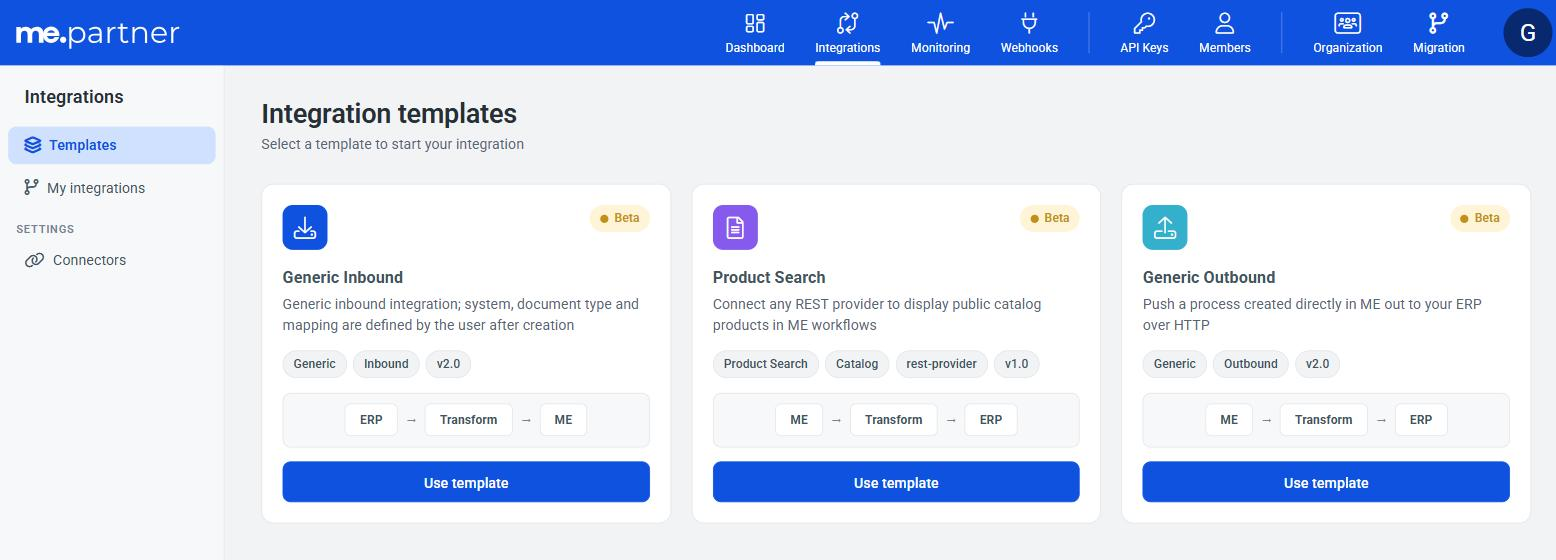
- In the Partner's Portal, go to Integrations > Templates and click Use template on the template you want.
- The integration is created immediately as Draft, with a default name (for example, "New Inbound Flow"). You can rename it. The name must be between 3 and 128 characters long and unique in your organization.
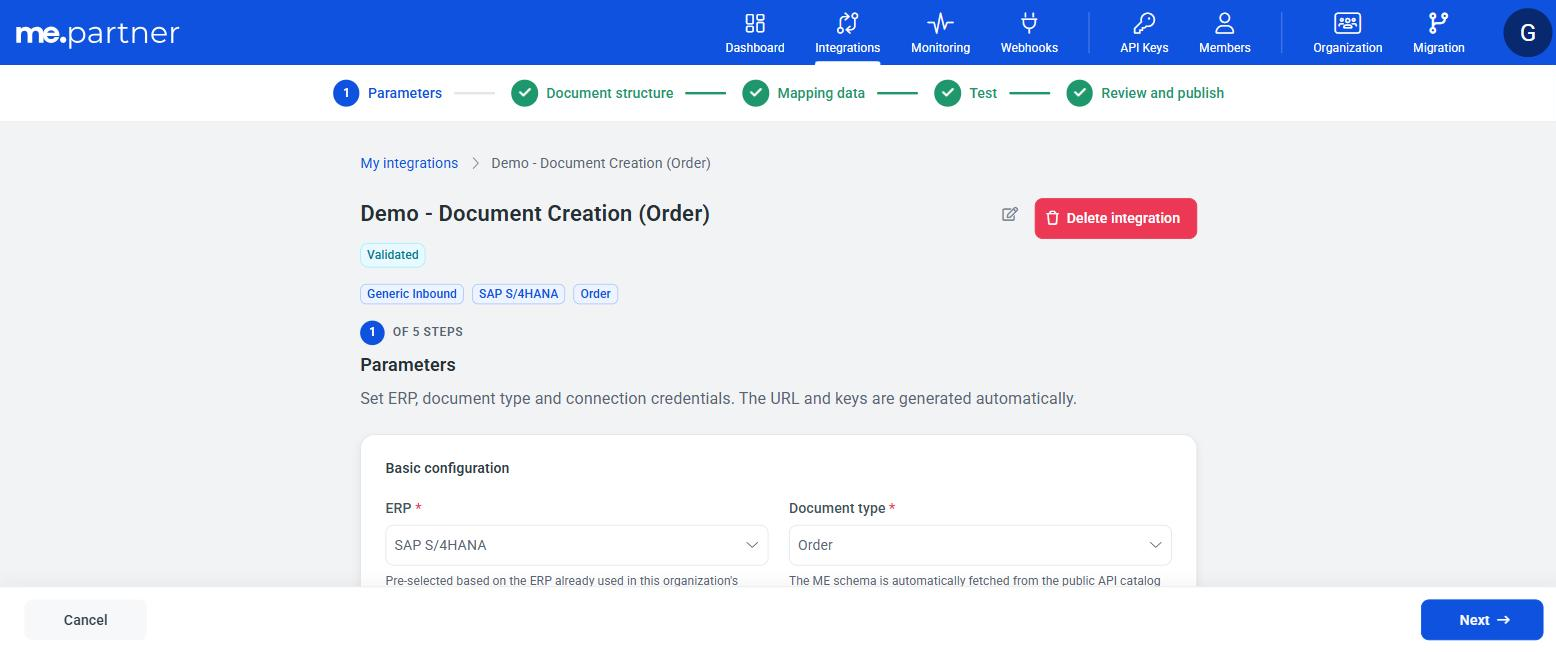
- Follow the wizard steps:
| Step | What you do |
|---|---|
| Parameters | Choose the ERP and the document type. In Product Search, choose the connector and the operations. In Document Search, also provide the identifier of a real ME document. |
| Document structure | Paste a sample of your system's JSON. In Product Search, load the provider's real response for each operation. |
| Mapping data | Review and adjust the field mapping suggested by the AI. See AI mapping. |
| Test | Run the integration for real to validate the configuration. |
| Review and publish | Check the summary and publish. |
- When you publish, the integration becomes Active. In Document Creation (Inbound) and Document Search (Outbound), the Integration activated successfully screen shows the Key, the Secret and the Endpoint URL: copy the Secret before leaving the wizard. In Product Search, which is called by ME itself, there is no credential screen: the portal shows a confirmation and returns to My Integrations. See Authentication.
❗️ Attention
If you cancel the creation in the middle of the wizard (Cancel creation), everything configured up to that point is discarded.
Validation by template
The integration moves from Needs review to Validated when an execution completes successfully. What counts as success depends on the template:
| Template | When the integration is validated |
|---|---|
| Document Creation (Inbound) | When ME confirms that the document sent in the test was processed successfully. This response is asynchronous: the portal waits for the confirmation in the test step. If ME rejects the document, the integration stays in Needs review. |
| Document Search (Outbound) | When the test execution returns the converted document without errors. |
| Product Search | When the operation's test execution returns the converted provider response without errors. |
📘 Note
In Document Creation (Inbound), the portal waits up to 1 minute for ME's response. If it does not arrive in that time, the test stays processing and you cannot move forward: follow the execution in Monitoring > Executions or run the test again. Only the most recent execution counts to validate the integration.
❗️ Attention
In the Document Creation (Inbound) template, the test is a real execution: the sample document is actually created in the ME environment. Use test data or a staging environment.
❗️ Attention
In the Document Creation (Inbound) template you can also Skip test. This option marks the integration as Validated without running anything: no document is sent to ME and the mapping is not checked. Any errors will only show up in real calls, after publishing. Use it only if you are already sure the mapping is correct.
Publishing (activating)
In the Review and publish step, click Publish. Only a Validated integration can be published. After that, it starts accepting calls at the Endpoint URL.
Editing an active integration
An Active integration cannot be changed directly. To edit it:
- In Integrations > My integrations, open the integration (View Details button on the card) and click Edit.
- In the Edit integration window, confirm the suspension. While the integration is suspended, it does not accept executions.
- Make the changes. The integration goes back to Needs review.
- Run the test again and publish.
❗️ Attention
While the integration is being edited, calls from your system to it will be rejected. Plan changes for a low-traffic period.
Editing and publishing again keeps the same Key and Secret of the integration: your system does not need to change the credential.
Suspending
In My integrations, open the active integration (View Details) and click Suspend integration. The integration stops running immediately. To reactivate it, edit it and publish it again, as described above.
Deleting
Open the integration and click Delete integration. Deletion is irreversible: the integration's configuration and credential are removed, and the Endpoint URL stops working.
- An Active integration cannot be deleted. Suspend it first.
- The history of executions already recorded remains available in Monitoring > Executions.