

Document Submission
Overview
Document Submission is a Partner's Portal tool for sending JSON payloads directly to ME's public APIs, without writing code and without relying on your ERP to trigger them. It works like an API client built into the portal: you pick the document, paste the payload, the screen validates the JSON against the API's published schema and, when you send, shows the API's real response.
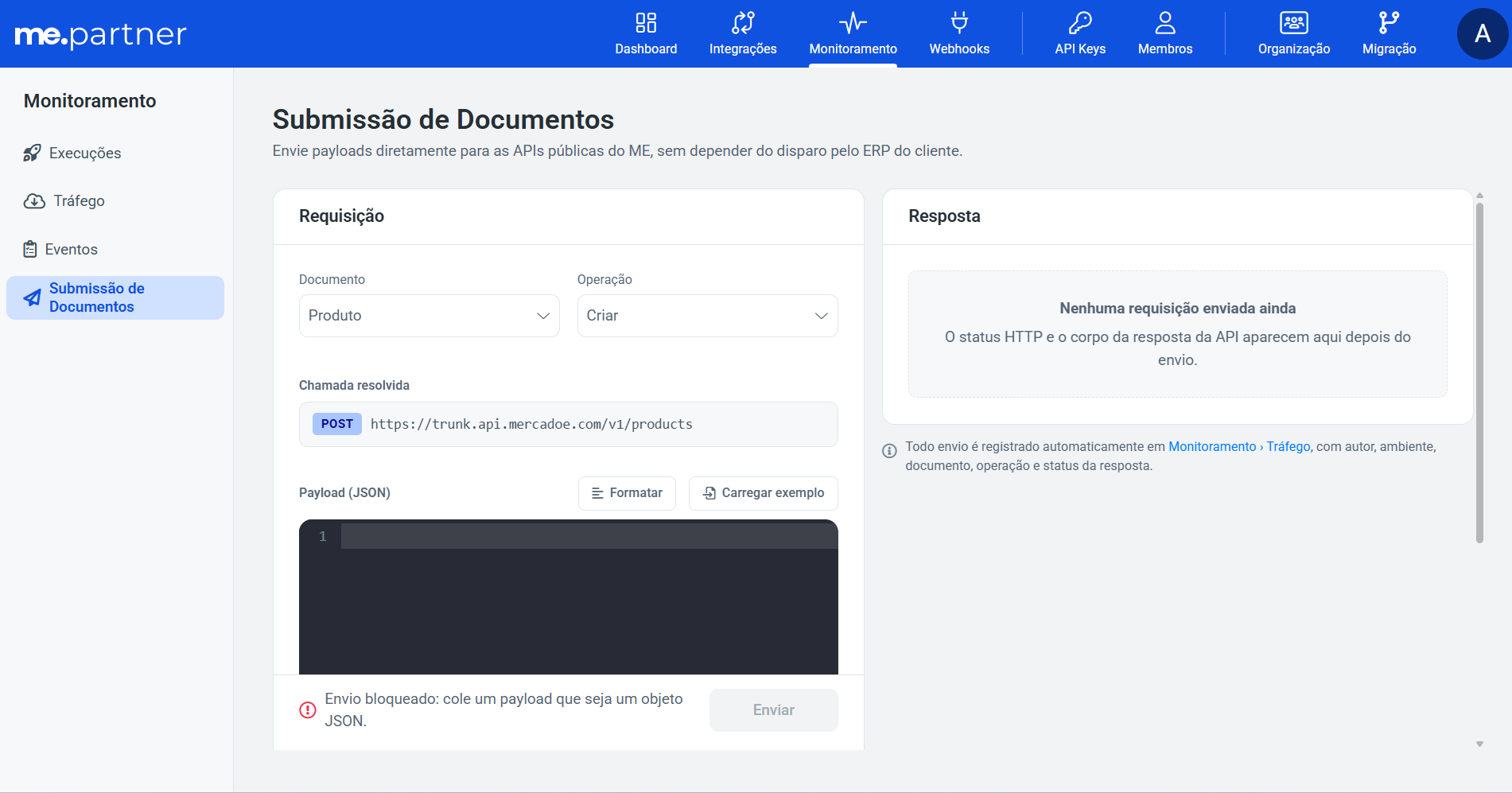
Use Document Submission to:
- Test the payload your ERP will generate before finishing the integration;
- Reproduce an integration error and see the API's full response;
- Send a one-off document while the automatic integration is not ready yet.
You reach the screen at Partner's Portal > Monitoring > Document submission, in the monitoring area's sidebar, next to Traffic and Events.
❗️ Attention
Submissions made on this screen are real calls to ME's APIs, made with your user. In production, they write real data for your company on the platform, exactly like a call made by your ERP.
Available documents
In this version, the screen offers the Create operation for the documents below:
| Document | Method and path | API |
|---|---|---|
| Product | POST /v1/products | Products API |
| Request | POST /v1/requests | Requests API |
| Quotation | POST /v1/quotations | Quotations API |
| Contract | POST /v1/contracts | Contracts API |
| Invoice | POST /v1/invoices | Invoices API |
| Purchase order | POST /v1/orders | Orders API |
| Order delivery | POST /v1/orders/{orderId}/deliveries | Orders API |
The full contract of each operation (fields, types and responses) is in the API Reference.
How to send a document
1. Choose the document and the operation
Select the Document and the Operation. The screen shows the Resolved call: the HTTP method and the full URL (gateway address + path) the payload will be sent to, so you know exactly which endpoint will be called before sending.
2. Fill in the IDs required by the path
When the operation's path has parameters, the screen shows one field for each under IDs required by the path. For example, in Order delivery, the orderId field takes the ID of the purchase order that will receive the delivery. The resolved call updates as you type.
While any ID is empty, sending is blocked.
3. Build the payload
Paste or type the payload in the Payload (JSON) editor:
- Load example: fills the editor with a sample payload for the selected document that already passes validation. Use it as a starting point and replace the values with real data (your ERP codes, supplier, items, etc.).
- Format: re-indents the JSON so it is easy to read.
❗️ Attention
The body must be a JSON object (
{ ... }) of up to 1 MB.Submissions with a very large payload may not be recorded in Monitoring › Traffic. To keep track of a large document, save the response shown in the Response panel.
4. Check the validation
While you edit, the screen validates the payload in the browser against the API's published schema:
| Situation | What you see | Blocks sending? |
|---|---|---|
| JSON with a syntax error | Invalid JSON, with the parser message. | Yes |
| Body that is not a JSON object (list, text, number) | A warning asking for a JSON object. | Yes |
| Missing required field | required field is missing warning on that field. | Yes |
| Field that does not exist in the document | this field does not exist in this document — check the name warning. When the only difference is letter case, the screen shows the correct name. | No |
| Type, length, format or value outside what is allowed | Warning with the broken rule (for example, must be at most 20 characters long). | No |
| Everything is fine | Payload valid for the {document} schema. | No |
Each warning points to the field in the items[0].quantity format. Up to 20 warnings are shown at a time; when there are more, the screen shows how many were left out.
ℹ️ Note
The schema used on the screen is a published copy of the API specification and may fall behind it. That is why type, length or unknown-field warnings do not prevent sending: the API response has the final word. If the schema cannot be loaded, validation is unavailable, but you can still edit and send.
5. Send
Click Send. When the portal points to the production environment, the screen shows a warning that the call affects real data and asks for an extra confirmation (Confirm sending?) before the call goes out. In the staging environment, sending is immediate.
Response
After sending, the Response panel shows the HTTP status and the body returned by the API, with a copy button. The result is classified as follows:
| Result | HTTP status | What it means | What to do |
|---|---|---|---|
| Document received | 2xx | The API accepted the request. | Follow the call in Monitoring › Traffic and, for asynchronous integrations, the processing result on the Dashboard or in the integration.result webhook. |
| The API rejected the payload | 400, 409, 422 | Business or contract error. | Fix the fields listed in the response body and send again. |
| Request not authorized | 401, 403 | Session expired or no permission for the resource. | Log in again. If it persists, ask for access. |
| Path document not found | 404 on an operation with an ID in the path | The ID given in the path does not exist. | Fix the ID and send again. |
| Endpoint not found | 404 on an operation without an ID in the path | The route does not exist on the gateway. It is a configuration problem, not a payload problem. | Report it to ME support. |
| The gateway returned an unexpected status | 5xx and others | The request reached the API but was not processed. | Check the response body and try again in a few moments. |
| The gateway did not respond | no status | There was no response within the time limit. | The request may or may not have reached the API. Check Monitoring › Traffic before sending again, so you do not duplicate the document. |
ℹ️ Note
Some ME APIs process the document asynchronously. In those cases, the
2xxresponse only confirms receipt; the final result (document created or rejected) arrives later, through theintegration.resultevent.
Tracking and audit
Submissions made through Document Submission go through the same gateway as your ERP's calls and are automatically recorded in Monitoring › Traffic, with your tenant, the user who sent it, the method, the path, the status and the request and response bodies. There is nothing to save manually. The exception is submissions with a very large payload, which may not be recorded (see Build the payload).
The screen does not keep a history of submissions: to look up a previous one, use Traffic.
Best practices
- Start from "Load example" and replace the values instead of building the JSON from scratch.
- Test in staging first and only then send in production.
- Read the error response body: it names the field and the rule the API rejected, in more detail than the screen's warnings.
- After a timeout, check Traffic before sending again, so you do not create the same document twice.
- Use the screen to validate the contract, not for bulk loads: for recurring volumes, integrate your ERP directly with the APIs.
FAQ
Do I need an API Key to use the screen? No. Submissions are authenticated with your Partner's Portal login. Calls are still subject to the same permissions and rules as the APIs.
Can I choose the environment (staging or production) on the screen? No. Submissions always go to the environment of the portal you are using. The URL shown in the Resolved call tells you which gateway the call goes to.
Why did the screen let me send and the API rejected it? The screen's validation is an early aid based on a copy of the schema. The API also applies business rules (existing master data, status, duplicates, etc.) that only it knows.
Can I update or delete documents on the screen? Not in this version. Only the create operations listed under Available documents are available.